A cPanel server that was set up well on day one is not the same server 6 months later. Updates have landed or failed, disks have filled, a customer's plugin has started sending spam, the backup destination silently ran out of space. Server management is the routine that catches those things; monitoring is the part of it that tells you the moment something changes. This guide is how we manage the cPanel servers we run and the ones customers hand us after an installation: what to watch, what to do weekly and monthly, how to respond when an alert fires, and, because the two are constantly confused in Pakistan's hosting market, exactly what the difference is between installation, management and monitoring.
⚡ Quick answer: cPanel server management is the ongoing work of keeping a WHM/cPanel server updated, secure, backed up and performing: monitoring uptime, CPU, RAM, disk, services, MySQL, mail queue and security events; applying cPanel and OS updates; checking that backups complete and restore; reviewing logs; fixing what breaks. Monitoring alone only watches and alerts. Installation is the one-time job of building the server. A managed cPanel server needs roughly an hour of routine work a week plus incident response; an unmanaged one accumulates risk until something fails.
Who this is for: owners of a WHM/cPanel VPS or dedicated server deciding whether to manage it themselves, buy monitoring, or hire a server management service, in Pakistan or anywhere else. Resellers on reseller hosting can skip the server-level tasks (your provider does them) but should read the monitoring section: you still need to know when your sites are down.
What's in this guide
- Installation vs management vs monitoring: what is the difference?
- What does cPanel server management actually include?
- What should you monitor on a cPanel server?
- Monitoring tools that work with cPanel
- Alerts: thresholds that wake you up for the right reasons
- The maintenance routine: daily, weekly, monthly
- Updates and patching without breaking sites
- Backups: verify, do not assume
- Security operations
- Incident response: when the alert fires
- Server management services in Pakistan: what to expect and what to ask
- FAQ
Installation vs management vs monitoring: what is the difference?
Installation builds the server once. Management keeps it healthy continuously. Monitoring watches it and reports, but does not fix anything. Providers, including us, sell all three, and buying the wrong one is the most common reason people feel let down by a "server management" purchase.
| Server installation | Server monitoring | Server management | |
|---|---|---|---|
| What it is | One-time build: OS, cPanel/WHM, web stack, database, firewall, hardening, tuning, testing | Continuous checks on uptime, resources, services and security, with alerts | Monitoring plus the human work: updates, backups, security, troubleshooting, changes |
| When | Once, when the server is new | Every minute, forever | Ongoing, weekly routine plus incidents |
| Who acts | The installer, then hands root back | Nobody; you receive the alert and decide | The administrator, with agreed access |
| Typical pricing model | Flat, per server (ours is $50) | Free to low monthly, per monitor or per server | Monthly, per server, tiered by response time and included hours |
| What it does not cover | Anything after handover | Fixing the problem it found | Usually: website development, migrations beyond a quota, hardware |
| Right for | Anyone with a new server | Admins who can fix things themselves but need to know when | Owners who do not want to be the sysadmin |
A useful test when a provider says "managed": ask who applies the next cPanel security update, who restores an account when a customer deletes their site, and who answers at 2 AM when the mail queue hits 10,000. If the answers are "you", it is monitoring with a nicer name.
What does cPanel server management actually include?
Strip away the marketing and every honest server management service is the same list of chores. The differences are in how often they are done, how fast someone responds, and whether it is a person who knows your server or a queue.
- Monitoring and alert response: uptime, resources, services, security events; a human looks at every alert and acts.
- Updates: cPanel, the OS, the kernel (or KernelCare), LiteSpeed, CloudLinux, Imunify360, Softaculous, JetBackup. Applied, verified, and rolled back when they break something.
- Backups: confirming the nightly job ran, the remote destination has space, and a restore actually works.
- Security operations: reviewing LFD and Imunify360 reports, cleaning compromised accounts, keeping the firewall and rules current, re-running Security Advisor after upgrades.
- Performance: watching the trend, tuning PHP-FPM, MySQL and caches as the server fills, telling you when it is time to grow.
- Housekeeping: disk cleanup, log rotation, mail queue, stuck processes, expired SSL certificates that AutoSSL could not renew.
- Changes and troubleshooting: new PHP version, a module a customer needs, a DNS change, "my site shows a 500 error", "email to Gmail is bouncing".
- Reporting: a monthly note of what was done and what to plan for, so the owner is not surprised by a full disk or a licence renewal.
Everything in this list assumes the server was built properly in the first place. Managing a server that skipped hardening and tuning starts with doing those, which is why we treat the setup, hardening and optimization guides as the baseline that management maintains.
What should you monitor on a cPanel server?
Monitor the things that fail, in the order they usually fail: reachability, disk, services, resources, mail, security, backups. This table is the monitoring set we put on every server; the thresholds are starting points, not laws.
| What | How to check | Alert when | Why it matters |
|---|---|---|---|
| Uptime (external) | HTTPS check on the hostname and 2 or 3 real sites from outside, every 1 to 5 min | 2 consecutive failures | The only check that sees what visitors see; internal checks miss network and DNS failures |
| Disk space and inodes | df -h, df -i; WHM disk usage warnings | 80% warning, 90% critical | A full disk breaks MySQL, mail and backups at once; inodes fill silently from cache and session files |
| Services | WHM Service Manager monitoring (chkservd) for httpd/lsws, mysql, exim, dovecot, named/pdns, cpanel, ftp, sshd | Any service down or restarted more than 3 times a day | chkservd restarts them automatically; repeated restarts mean a real fault |
| CPU and load | Load average vs core count; %steal on a VPS | Load above cores for 15 min; steal above 5% | Sustained overload means a runaway account, an attack, or a server that has outgrown its plan |
| RAM and swap | free -m; vmstat swap in/out | Swap in use and growing; OOM killer in dmesg | The OOM killer picks MySQL first; you find out from customers |
| Disk I/O | iostat %util and await; iowait in top | iowait above 10% outside backup windows | High load with idle CPU is always disk; the fix is finding the writer |
| MySQL / MariaDB | Process up, connections vs max_connections, slow query log size, error log | Connections above 80% of max; "too many connections" or crash-recovery lines in the error log | Database trouble looks like "the site is slow" long before it looks like an outage |
| Mail queue and reputation | exim -bpc; LFD queue alert; blocklist check of the IP (mxtoolbox or similar) | Queue above 500; any blocklist listing | A spam outbreak is discovered by the queue hours before customers complain about bounces |
| Security events | LFD blocks and alerts, cPHulk history, Imunify360 incidents, root/WHM logins, ModSecurity hits | Any root login you did not make; malware found; sudden spike in blocks | Detection within minutes is the difference between cleaning one account and rebuilding the server |
| Backups | Backup completion email; remote destination free space; a monthly test restore | Missed run; destination above 85%; restore fails | Backups fail quietly for months; you learn on the day you need one |
| SSL certificates | AutoSSL log; external check of expiry on key domains | Fewer than 14 days to expiry | AutoSSL fails on domains whose DNS moved; the browser warning arrives at the worst time |
| Licences and updates | WHM licence status; upcp log; dnf-automatic log; KernelCare status | Failed update; licence expiring in 7 days; kernel not patched | An expired cPanel licence locks WHM; a failed upcp leaves a half-updated system |
Monitoring tools that work with cPanel
You do not need an enterprise platform to monitor one or ten cPanel servers. You need an external uptime checker, cPanel's own service monitor, LFD's resource alerts, and one place to see graphs when you are diagnosing a trend.
- External uptime monitoring: UptimeRobot, HetrixTools, Better Stack or any similar service, with checks on the hostname and your most important sites, alerting to email and a phone (WhatsApp, Telegram or SMS). Free tiers cover a small server. This is the one tool everyone should have, including reseller customers who own no server at all.
- WHM Service Manager (chkservd): built in. Tick "Monitor" for every service you run; cPanel restarts it when it dies and emails the contact address. Also built in: Contact Manager thresholds for disk and load, and the Server Status screens.
- LFD: already installed with CSF. Its LF_* alerts cover load, process count, long-running processes, mail queue size, disk usage and root logins. Point them at an off-server mailbox.
- Imunify360 dashboard if licensed: incidents, malware findings and blocked IPs in one place, with email reports.
- Graphs: Netdata (free, one-line install, lives on the server, good for "what happened at 3 AM"), HetrixTools' server agent, or cPanel's own 360 Monitoring service. Graphs are for diagnosis, not alerting; keep the alerting simple and external.
- Log review: not a tool, a habit. The commands for load, memory, logs and the mail queue are in our Linux commands for cPanel servers.
What you will not find useful for a single cPanel server: Zabbix, Nagios, Datadog or Dynatrace. They are built for fleets and cost more time to maintain than they save at this scale.
Alerts: thresholds that wake you up for the right reasons
An alert you ignore is worse than no alert, because it trains you to ignore the next one. The rule we use: an alert must be actionable, it must be rare, and it must reach a human on a device they carry. Set thresholds so that a normal week produces almost nothing.
- Page immediately: site down from outside for 2 checks; disk above 90%; MySQL, Apache or LiteSpeed down after chkservd's restart attempt; root login from an unknown IP; mail queue above 1,000.
- Email, look within the day: disk above 80%; load above cores for 15 minutes; a backup that did not complete; an SSL certificate under 14 days; updates that failed; LFD block spikes.
- Weekly digest only: routine LFD blocks, ModSecurity hits, Imunify360 cleaned items, resource-usage reports per account.
Alerts must never depend on the server they describe. A mail alert about a dead Exim, sent through that Exim, never arrives. Use an external monitor for the page-level alerts and a mailbox elsewhere for the rest.
The maintenance routine: daily, weekly, monthly
This is the actual work of managing a cPanel server. It takes about an hour a week for a healthy server, more during a problem month, and it is the same whether the owner does it or a service does.
| Cadence | Tasks |
|---|---|
| Daily (5 minutes, mostly automated) | Read the alert mailbox; glance at load, disk and mail queue; confirm last night's backup and upcp completed; check the Imunify360 or maldet summary. |
| Weekly (30 to 60 minutes) | Review LFD and cPHulk activity for patterns; check the slow query log and top resource-using accounts (lveinfo on CloudLinux); confirm OS updates applied and whether a reboot or KernelCare patch is pending; scan for full inodes and large logs; verify AutoSSL has no failing domains; test that WHM and cPanel log in over HTTPS with a valid certificate. |
| Monthly (1 to 2 hours) | Restore one account from the remote backup to a test account; re-run WHM Security Advisor; review PHP versions in use and retire end-of-life ones; check licence expiry dates (cPanel, LiteSpeed, CloudLinux, Imunify360); review disk growth and forecast when the server fills; apply any pending reboot in a window; write the monthly note. |
| Quarterly | Re-baseline performance as in the optimization guide; review CSF rules and the allow list; audit WHM users, resellers and API tokens; check the OS end-of-life date and plan the next major version; review the backup retention policy against what the business actually needs. |
Updates and patching without breaking sites
The safe policy is: automatic for security, supervised for major versions. cPanel on the RELEASE tier updates itself nightly through upcp and has a good record; let it. OS security updates through dnf-automatic or unattended-upgrades; let them. The things that need a human:
- Kernel updates need a reboot to take effect. Either schedule a monthly window and announce it, or run KernelCare and never reboot for a kernel again. A server that shows a "reboot required" notice in WHM for 4 months is running a kernel with known holes.
- PHP version retirements. When a version leaves EasyApache, accounts pinned to it break. Move them up before that, one at a time, testing each site.
- MySQL and MariaDB major upgrades. Take a full backup, read the release notes, do it in a window. WHM's upgrade tool handles the mechanics but cannot undo a downgrade-incompatible change.
- cPanel major versions (roughly every 2 to 3 months). Automatic on RELEASE is fine, but read the changelog the morning after and re-run Security Advisor; occasionally a default changes.
- Third-party plugins (LiteSpeed, CloudLinux, Imunify360, Softaculous, JetBackup) auto-update by default; keep it that way, and check their logs when something odd happens the day after.
Whatever updates, the check afterwards is the same: /scripts/restartsrv_* services all up, a real site loads over HTTPS, mail sends, and the error logs are quiet.
Backups: verify, do not assume
Backups fail quietly. The destination fills, an SFTP password rotates, a large account times out, and the nightly job reports partial success in an email nobody reads. Management means treating backups as something to verify, not something that exists.
- The nightly completion email goes to a mailbox someone actually reads; missing email is itself an alert.
- The remote destination (SFTP, S3-compatible, B2) has a free-space alert at 85%.
- Once a month, restore a real account from the remote copy to a test account and load its site. Note how long it took; that number is your recovery time.
- Retention matches the business: daily for 7 to 14 days, weekly for a month, monthly for a quarter. Compromises are found late; you need the copy from before.
- Customers who need self-service restores get JetBackup; it also makes incremental backups that do not hammer the disk nightly.
Security operations
Hardening is done once and re-verified after changes; security operations is the ongoing part. The full hardening baseline is in the cPanel security guide; the routine that keeps it true is:
- Every root and WHM login is expected. Review them weekly; alert on them daily.
- LFD and cPHulk reports: a spike against one account usually means that account's password leaked or its application is being probed.
- Malware findings from Imunify360 or a weekly maldet scan: clean, then find the entry point (almost always an outdated plugin or a reused password) and close it, or the malware returns within days.
- Outbound mail: watch the queue and the IP's blocklist status; an abused account is dealt with by suspending its mail, not the whole account, until it is cleaned.
- After every cPanel major update, re-run Security Advisor and the verification checklist; a changed default has bitten every administrator at least once.
- Access hygiene: remove staff SSH keys and WHM API tokens when people leave; rotate the root password when an administrator changes; keep 2FA on for root and resellers.
Incident response: when the alert fires
Every incident on a cPanel server follows the same shape, and having the shape written down is what separates a 20-minute outage from a 4-hour one.
- Confirm from outside. Is the site actually down for visitors, or only for you? Check from a phone on mobile data and from the external monitor.
- Get in. SSH on the normal port; if that fails, the provider's console. Keep the console credentials somewhere that is not on the server.
- Triage in 60 seconds:
uptime,df -h,free -m,/scripts/restartsrv_httpd --status(or lsws),exim -bpc,tail -50 /var/log/messages. Nine incidents in ten are a full disk, a dead service, an overloaded account, or a mail flood, and this tells you which. - Restore service first, diagnose second. Restart the dead service, free 5 GB, suspend the runaway account or freeze the mail queue. Customers care about the site being back; the root cause can wait 30 minutes.
- Find the cause in the logs while the memory is fresh, and fix it properly: the cron, the plugin, the backup schedule, the limit that should have existed.
- Write 5 lines about what happened, when, what fixed it and what changed so it will not recur. Six months later that note is worth more than any monitoring graph.
The commands used at each step, with a copy button on each, are collected in the Linux commands cheat sheet. If root itself was compromised, the response is different: rebuild from a clean install and restore accounts from a backup older than the intrusion, because a rooted server cannot be trusted again.
Server management services in Pakistan: what to expect and what to ask
Most server management for Pakistani businesses is bought from foreign providers on a ticket queue, with prices quoted in dollars and response times measured in hours. That works until the first real incident at 2 AM Pakistan time. A local administrator, on WhatsApp, in your working hours and language, is a different experience, which is why "server management service in Pakistan" is a search people run after a bad night rather than before it.
Whoever you consider, local or foreign, these are the questions that separate a real service from a monitoring subscription with a sales page:
- Who exactly does the work, and what are their credentials? A named administrator with verifiable certifications (RHCSA, CCNA, cPanel's own certifications) beats "our team of experts".
- What is monitored, and where do alerts go? Ask for the list; compare it with the table above.
- What is the response time for a down server, in writing? And is it a target or a guarantee with a remedy?
- What is included and what is billed extra? Migrations, malware cleanup, major upgrades and "changes" are the usual extras. Neither answer is wrong; hidden answers are.
- What access do they need, and how is it revoked? An SSH key you can delete, not your root password.
- Can they show you a monthly report from another server? Redacted is fine. No report means no routine.
- How do you pay? For Pakistani customers, PKR by bank transfer, JazzCash or EasyPaisa without a card and without a dollar conversion surprise each month; for everyone else, crypto or bank transfer should be possible.
At Qazi.Host, server management and monitoring is a monthly service run by the same administrator who does our server installations, on WhatsApp, priced in PKR with USDT for customers abroad. It covers the routine in this guide: updates, resource monitoring, backup checks, security patching and troubleshooting on your VPS or dedicated server at any provider. Message us on WhatsApp with your server details and we will tell you honestly whether you need management, monitoring, or just a better setup.
FAQ
What is the difference between server management and server monitoring?
Monitoring watches the server and sends alerts when something crosses a threshold; it fixes nothing. Management includes monitoring and adds the human work: applying updates, verifying backups, handling security events, tuning performance and responding to incidents. If nobody with root access acts on the alerts, you have monitoring, not management.
How much does cPanel server management cost?
Internationally, monthly plans for a single cPanel server run from roughly $15 to $70 depending on response time and included hours, with one-time hardening or setup sometimes charged separately. Pakistani providers quote in PKR or on request. The price is less important than what is included and who answers; a cheap plan that excludes incidents costs more in the first outage.
Can I manage a cPanel server myself?
Yes, if you are willing to spend about an hour a week on the routine above and to be reachable when the external monitor pages you. WHM automates most of the mechanics (service restarts, updates, backups); the judgement is in reading the alerts and logs. Many owners manage their own server for a year and then buy management once the business grows or the first serious incident happens.
What is the most important thing to monitor on a cPanel server?
External uptime and disk space. Uptime because it is the only check that sees what visitors see; disk because a full disk breaks the database, mail and backups at once and gives no warning of its own. Everything else is second.
Does a managed cPanel server still need a firewall and hardening?
Yes. Management assumes the baseline exists and maintains it. A management service that does not start by checking SSH policy, CSF rules, cPHulk, PHP handler and backups is not managing the server; it is watching an unlocked door.
Do you offer server monitoring services in Pakistan without full management?
Monitoring on its own is inexpensive and mostly automated, so we usually recommend setting it up yourself with an external uptime service plus LFD and WHM's built-in alerts, which this guide explains, and buying management only if you want a person to act on the alerts. If you would rather have us set up the monitoring, it is part of both the installation service and the monthly management service.
Written by
Ahtsham Khan Qazi
Founder & CEO, Qazi.Host · RHCSA · CCNA · 14+ years in server administration
Runs the shared, reseller and dedicated infrastructure behind Qazi.Host and writes these guides from the servers he administers. Corrections and questions are welcome on WhatsApp.
Read full bio →Related Articles
More guides on cPanel to help you make the right decision.
How to Optimize a cPanel Server for Better Performance
Measure first, then fix the real bottleneck: PHP-FPM, OPcache, Apache vs LiteSpeed, caching, MySQL tuning, CloudLinux limits, CPU, RAM and disk I/O on cPanel.
How to Secure a cPanel Server: Complete Server Security Hardening Guide
cPanel server hardening in order: SSH, CSF/LFD after the 2025 ConfigServer shutdown, cPHulk, WHM settings, PHP, ModSecurity, CageFS, Imunify360, updates, backups.
How to Set Up a cPanel Server: Complete cPanel & WHM Server Setup Guide
Step-by-step cPanel & WHM server setup: requirements, OS choice, hostname, DNS, install command, WHM configuration, PHP-FPM, MySQL, firewall and production checks.
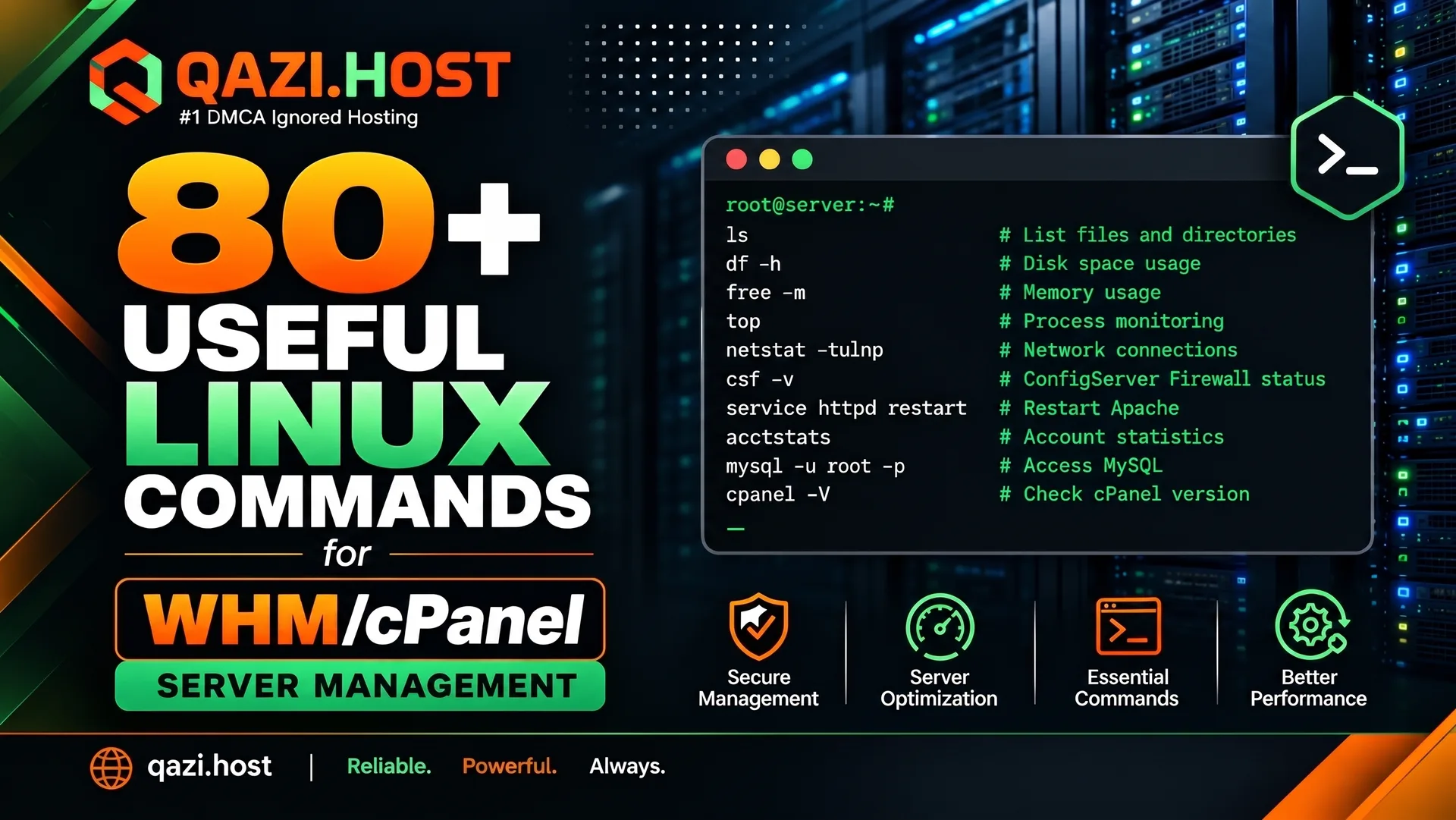
80+ Useful Linux Commands for WHM/cPanel Server Management
87 Linux commands for cPanel servers that admins actually use — SSH basics, cPanel scripts, Exim, MySQL, CSF, logs and disk cleanup, every command ready to copy.